Table of Contents
Accessing & Downloading Your Files from Etsy
Important Note: You cannot download digital files from inside the Etsy app. If you are using your tablet – you must use a browser to access your Etsy account and make the download.
If you purchased your planner while in the Etsy app don’t worry, you can still get to your downloads. Just switch to a browser – for example, Safari if you are on an iPad.
Go to Etsy.com and login to your account
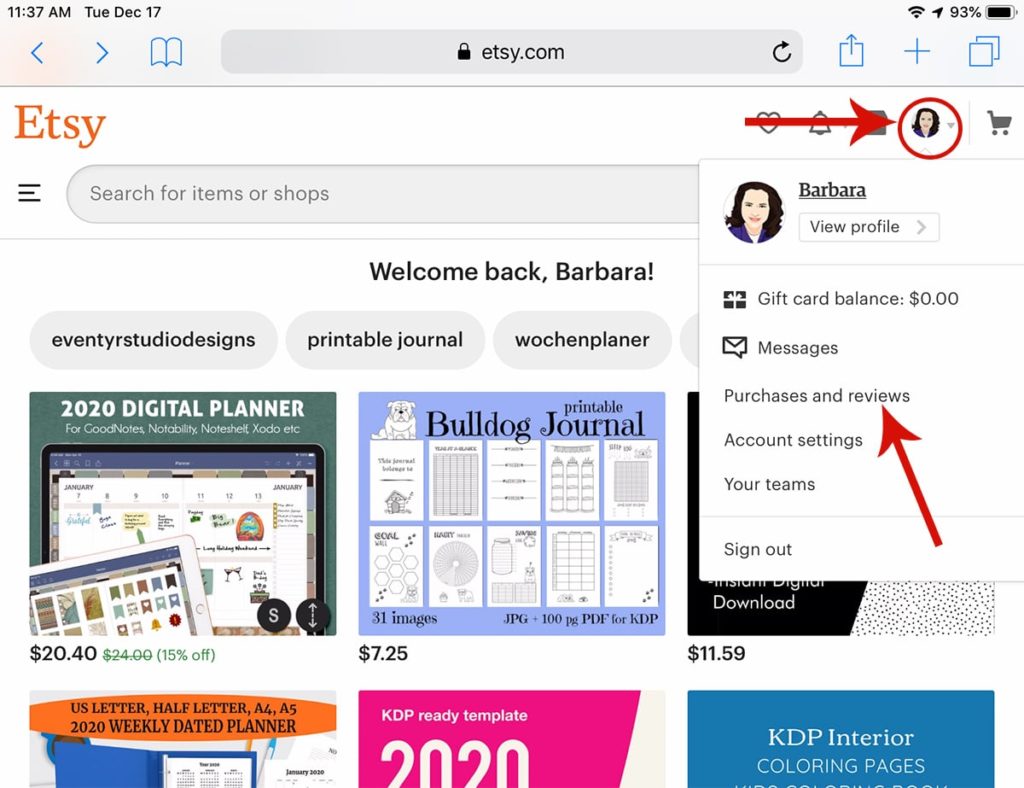
Step 1 – Click on your Profile image to get the drop down menu, and then click on Purchases & Reviews
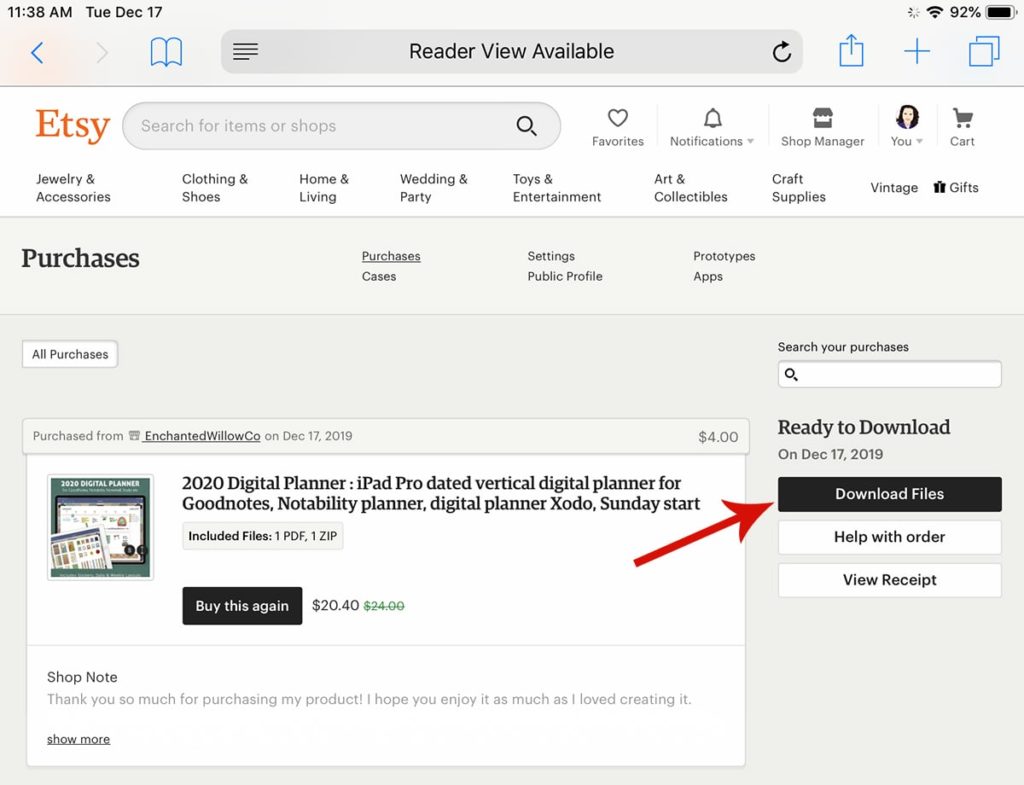
Step 2 – Next to your purchase on the right side column will be a button for “Download Files”. Click that button to go to the download page
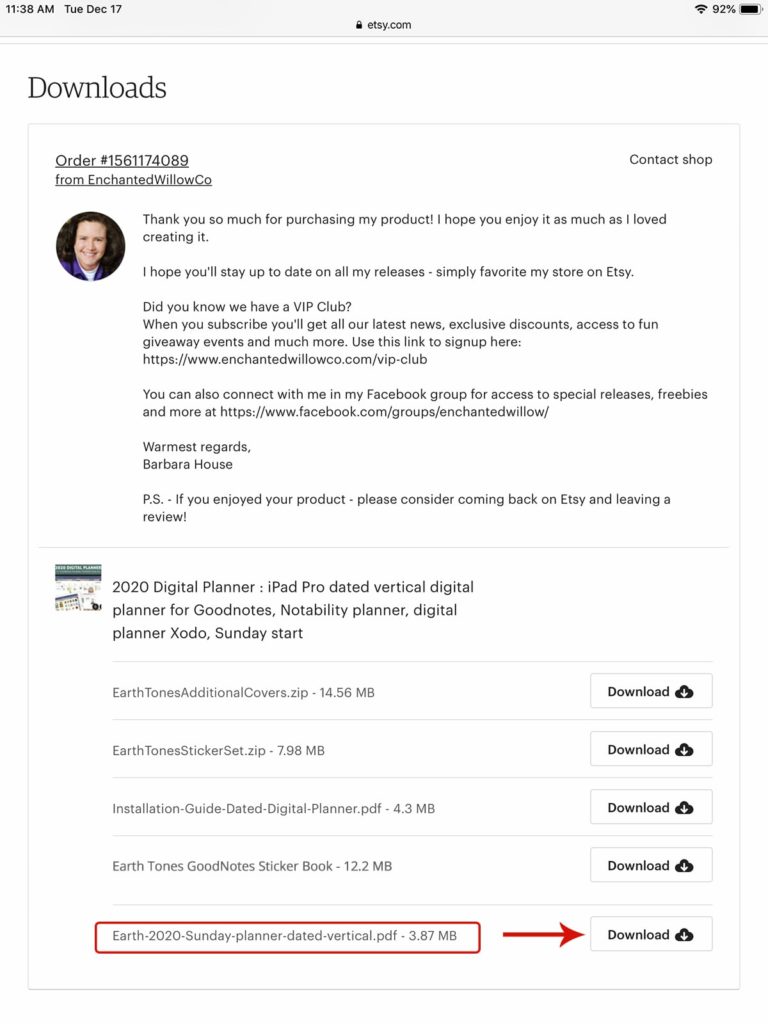
Step 3 – To install, you want to download the PDF file. Click on the download button next to the .PDF file
Q. What if I checked out as a Guest?
A. You will need to wait for the email receipt Etsy sends, which will have a button link to download your files. You will need to enter that link in a browser to access the files. Then proceed with the remaining steps for the installation.
Accessing & Downloading Your Files From Our Website
If you purchased your planner from our website, you have a button to access your files immediately after purchasing. You have also been sent a receipt via email that has a link to your files.
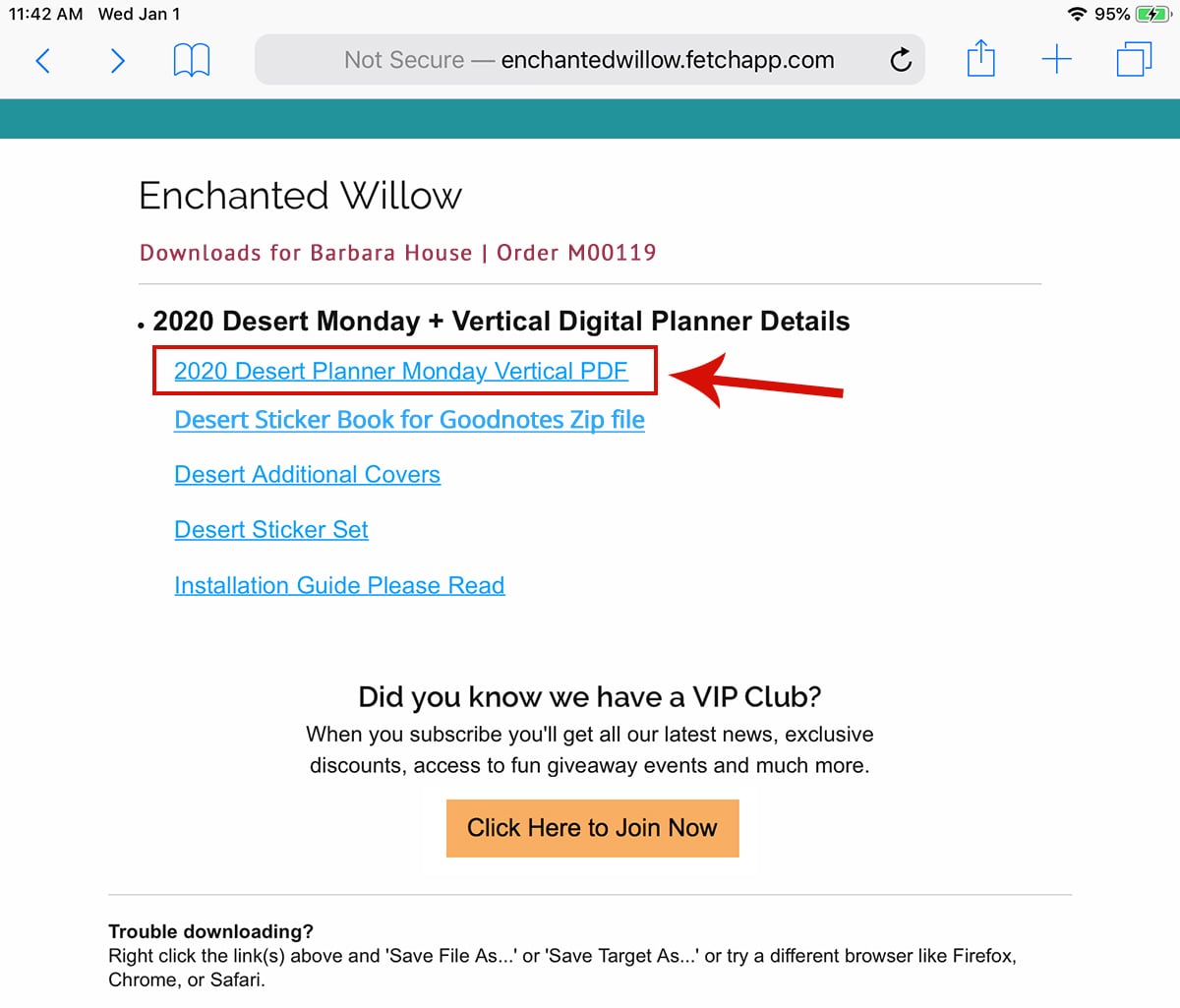
Once you are on your download page as shown below, click on the PDF file to begin the download.
Installing in iOS for iPad / iPhone devices
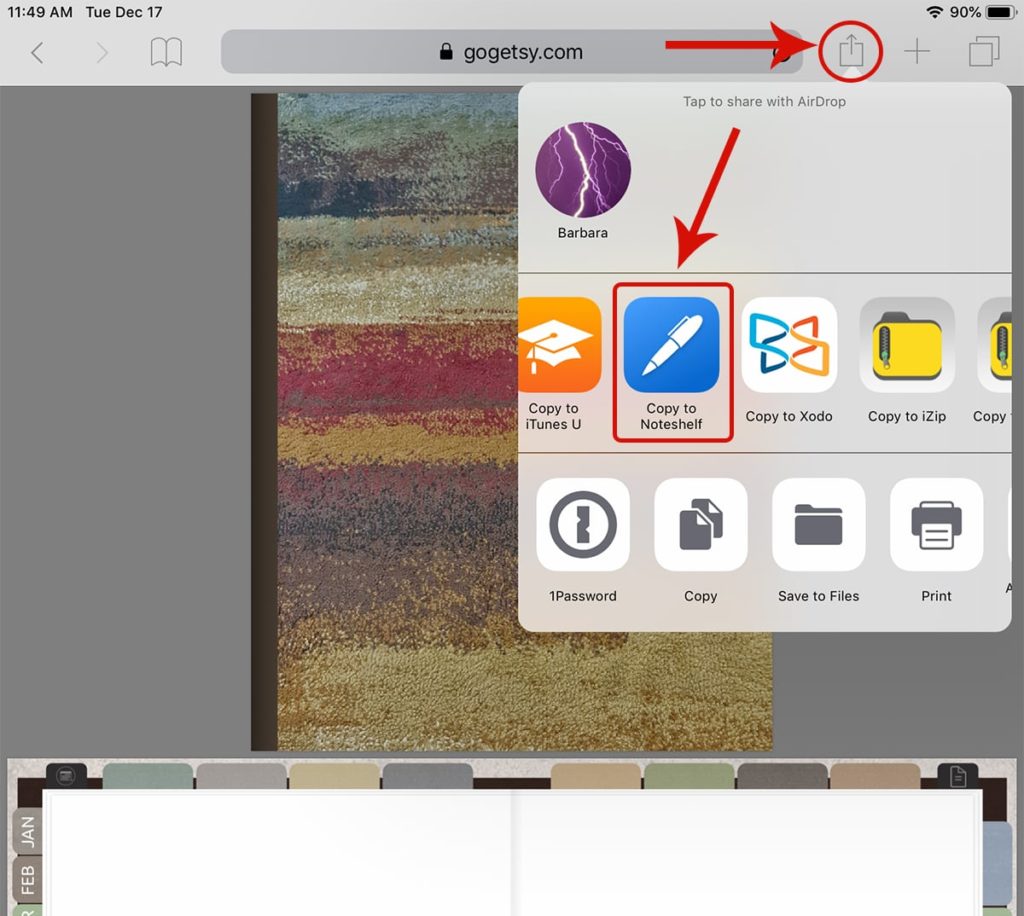
The browser will open the file, which is normal. All browsers try to do this with PDF files. So what you want to do is to save it to your application.
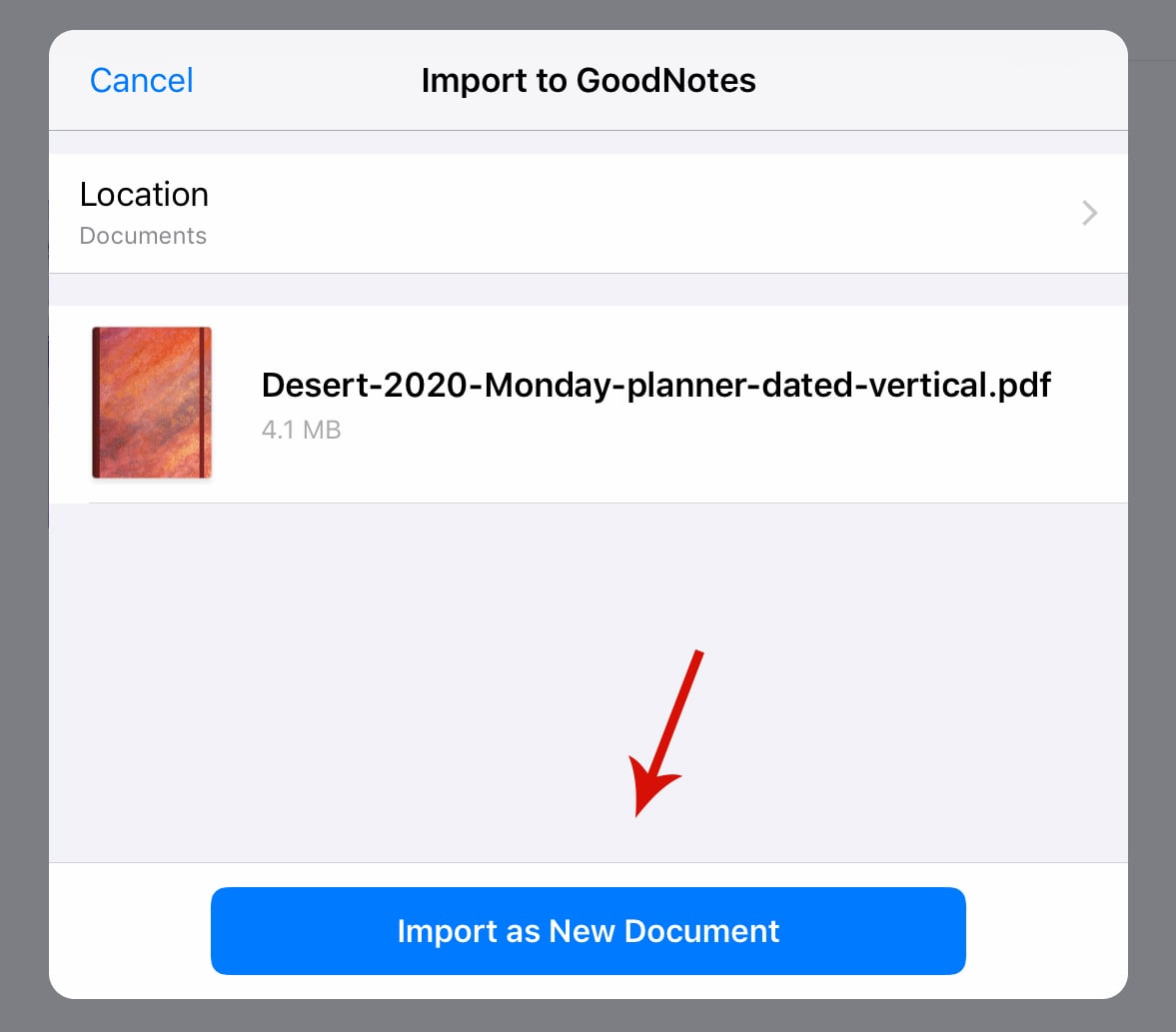
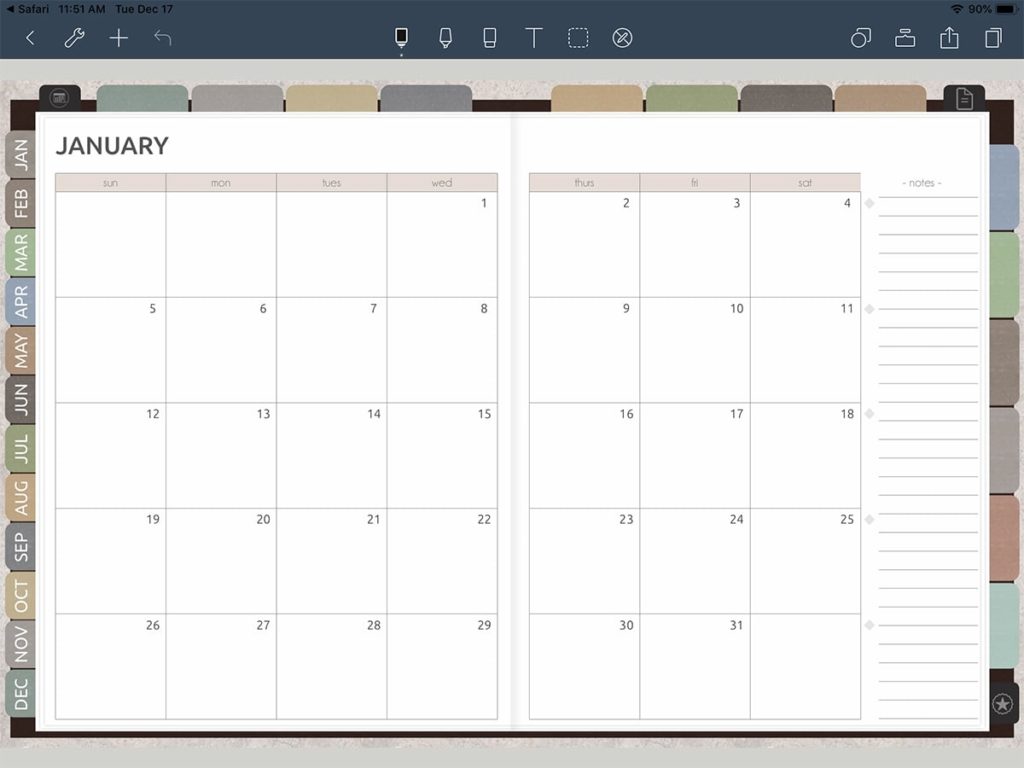
Step 5 – Your application will now import and automatically open your planner.
Installing Your Planner Stickers
Next, you will need to install the stickers. Please visit these articles for detailed instructions
Installing the GoodNotes Sticker Book
Installing Individual Digital Stickers from Zip File